2026 · VROONG Product Design Internship
Making shipped screens and their context findable
Built in 9 days for the Vroong Plus rider app, now used on Vroong’s internal network.
Overview
Across the Figma workflow, information got lost and scattered, so no one could be sure what was current.
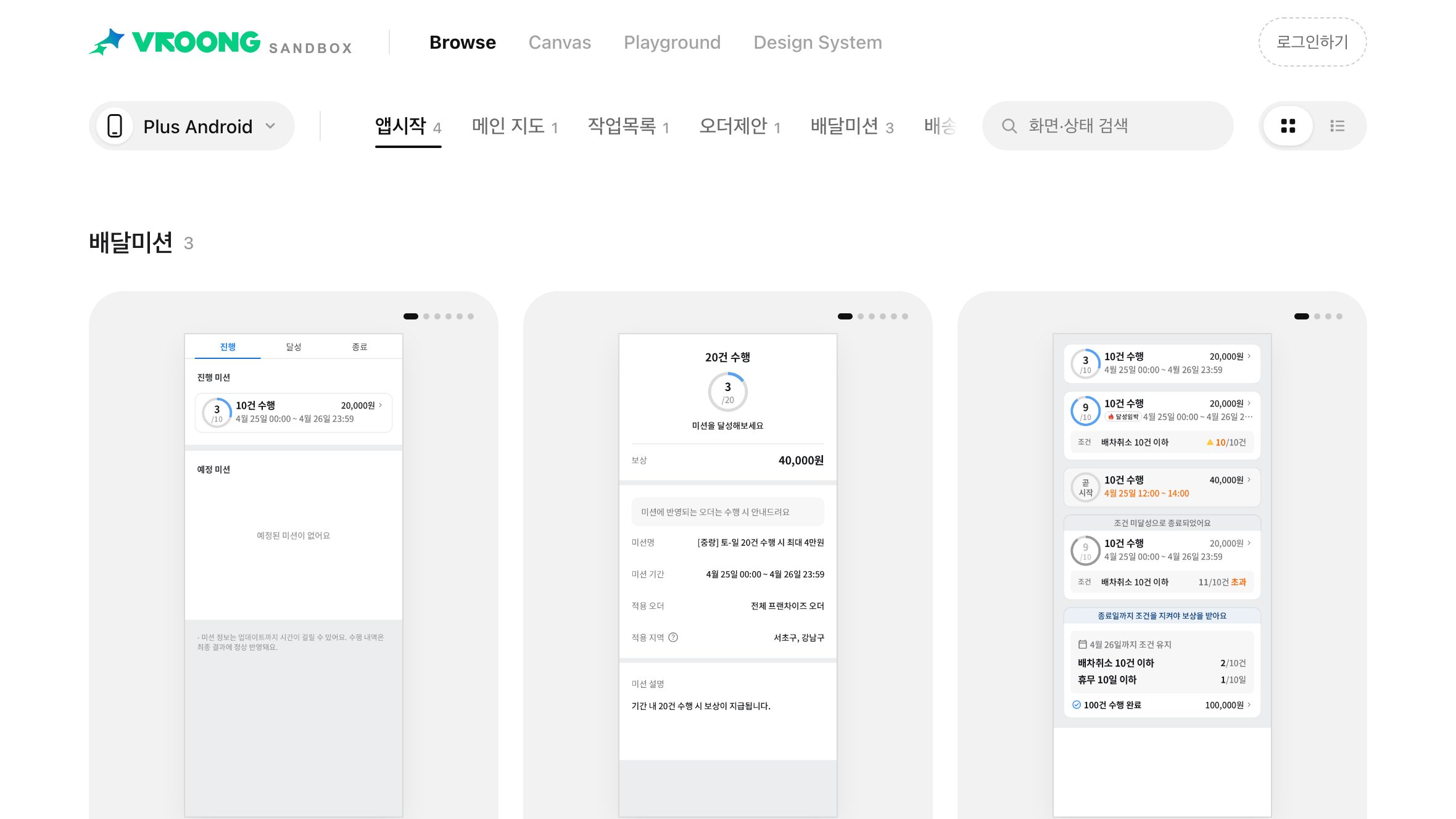
Outcome. A live internal workspace for the Vroong Plus rider app, bringing 34 screens, 282 real screenshots, and 37 status cards into one place.
As-Is / To-Be
Context
The brief covered the whole Figma workflow.
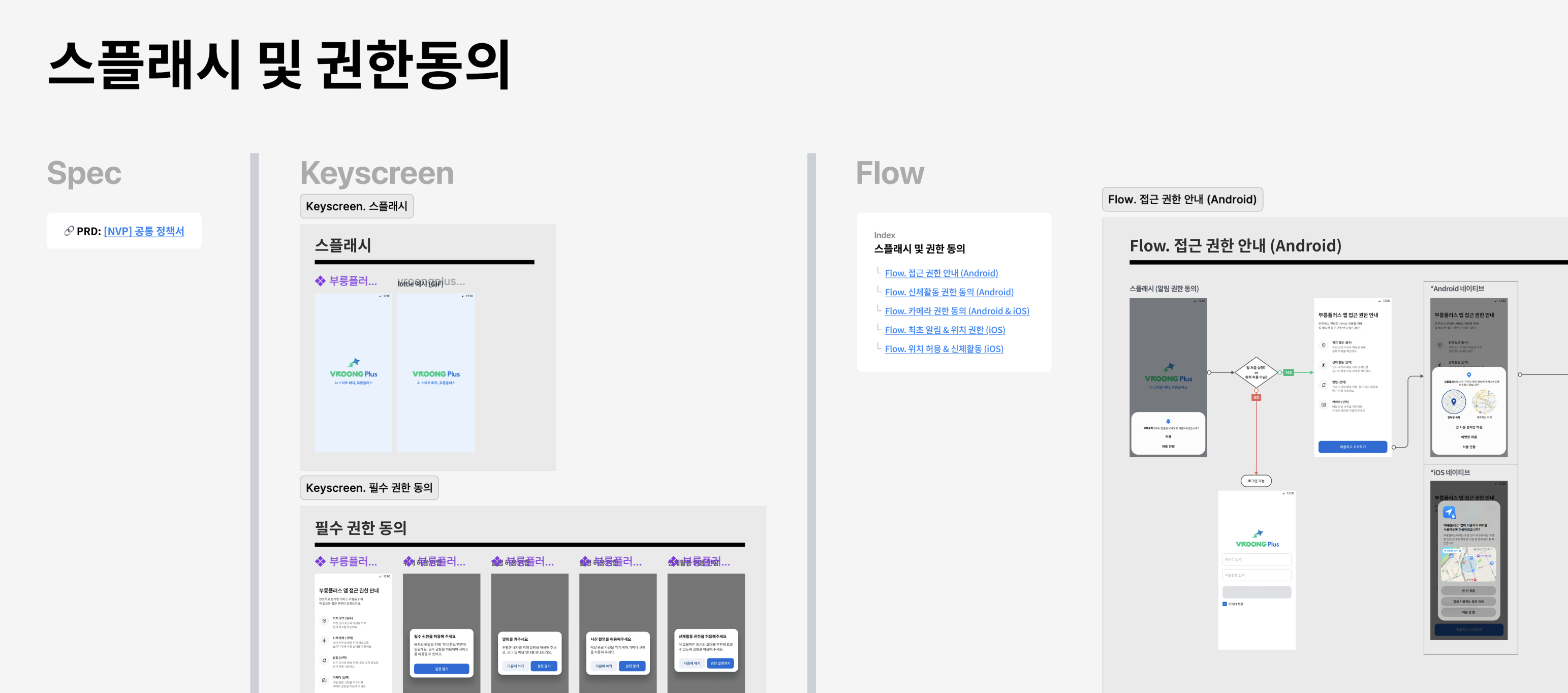
The first thing I was asked to do after joining Vroong as a product design intern was review the existing Figma system and workflow to learn how work moved through the team. Vroong is a last-mile delivery platform: the product design team drafts in Playground, hands off to engineering in Handoff, tidies shipped work into Master, and moves it to Archive. I was then asked to find inefficiencies in that workflow and identify ways to make it more AI-native, an organisation-wide direction for the company. I started by speaking with the product designers.
Problem
The problem wasn't one file. It was everywhere in the flow.
Three recurring breakdowns made the workflow unreliable. Designers re-checked whether files were current at the start of every project, and developers kept asking why screens had changed. In two 2025 projects, about 40% of issues came from mismatches between design and implementation.
- 01
Released screens and Master Figma drifted apart
Changes made after release often never reached Master, so the gap grew with every release.
- 02
Handoff context disappeared between stages
Comments left in Handoff lost their context once work was moved to Archive.
- 03
The files were difficult for AI to interpret
Many layers kept default names, leaving AI without the structure it needed to read the files reliably.
Survey, interviews, and file audit
Everyone used the file daily. Few understood how it was organised.
I surveyed 27 server engineers, client engineers, QA, and PMs, then interviewed four product designers. Only 22% could clearly explain how the files were structured, and every answer saying information was hard to find came from server engineers. Asked how much time they lost each week, the most common answer was "not sure": the cost was scattered rather than felt in one place. An audit of real Figma files told the same story. Policy notes appeared 105 times in working files and zero times in the final pages. Meanwhile, not one answer pointed to mismatched design tokens, the fix I had first considered.
Google Forms response analysis
Add a redacted Google Forms response dashboard and analysis charts for the 27 respondents.
Designer interviews
Add a consent-cleared photo from the product-design team interview or workflow-review session.
Needs by role
File organisation is the foundation for an AI-native workflow.
- 01
Server engineers
What the server should return in this state, and which policy backs it
- 02
Client engineers
Sizes, colours, and spacing, plus edge cases for each state and which components to reuse
- 03
QA
Whether a difference from the live screen is a bug or an intended change
- 04
Everyone
Is this screen live, what changed, and why?
Benchmark
How leading product teams do it.
Workflow examples from Figma, Webflow, Slack, Uber, PayHere, and more.
Make what's live visible
Hex, Webflow, and Figma's own team mark each file's status and pin a README at the top, so finished work never looks like work in progress.
Leave nothing for engineers to ask
Webflow and Lattice keep one Ready for dev page with specs, screens, sequencing notes, and edge cases, so engineers don't have to come back with questions.
Stop translating Figma into code
Shopify, Intercom, and Razorpay hand off through code branches or pull requests, and Uber's agents read Figma directly to write the spec.
Organise files by where the work is
PayHere, a Korean team, sorts every squad's files into Planning, Playground, Handoff, and Archive, the same stages Vroong already uses.
Reframe
I changed the question.
At first I looked at tightening Figma itself: templates and annotation rules. But the research kept pointing the same way. However good the rules, someone still had to copy every change back by hand after each release. So instead of fixing the files, I moved the source of truth for each kind of information. Figma stops being the place you keep up to date by hand, and becomes the place you start work from screens sent by the code.
How do we keep Figma files better maintained?
Where should the truth for each kind of information live?
Existing sources of truth
The key was not to replace every source of truth, but to connect the ones that already worked.
The shift from design tokens to screens and states was one decision, not the main story. VDS already governed shared components and tokens. More importantly, the engineering team had a documentation hub that collected service knowledge and linked back to its source Notion documents. Sandbox did not need to recreate either system. It needed to make the right source reachable from a live screen.
- 01
Production code answers what is live
The shipped app remains the authority for what users see now.
- 02
The documentation hub answers policy questions
The engineering team's documentation hub keeps service knowledge connected to its source Notion documents, rather than duplicating policy in a screen card.
- 03
Sandbox connects the sources at the screen
A screen card makes the live UI, its policy references, and its Figma context discoverable together without claiming ownership of any of them.
Core idea
Screens, policy, and context each got one home.
- 01
Screens come from the app's code
Screens are captured automatically from the real app. When a card and the app disagree, the app wins.
- 02
Policy stays in the engineering documentation hub
Sandbox links to the documentation hub and its source Notion documents rather than copying policy. Each link shows how trustworthy it is and when it was last checked.
- 03
Context comes from Figma
Why a screen looks the way it does, and where it leads, is pulled from Figma as reference.
How it works
One flow from the app's code to the designer's workbench.
Sync reads the app's production branch, copies only the files that changed, and records which branch and app version each screenshot came from. Each screen then gets a status card: its states, the version it reflects, where it's entered from and where it leads, and links to policy and Figma context. The team browses those cards in the Sandbox viewer, and designers pull the screens they need into Figma. I designed what to show and what to leave out, and built it myself with AI coding tools.
Main features
Four ways Sandbox makes live product context usable.
Browse live screens and their states
Browse screens by app and feature, then see every captured state together instead of reproducing each one on a QA phone.
Inspect release context in one detail view
Confirm a screen's status, app version, branch, and visual states before deciding whether a difference is a bug or an intentional release change.
Trace the flow and API behaviour
Follow where users enter and leave a screen, and see which API calls support each action without searching through logs or code first.
Start a prototype from a real screen
Turn a change request on a real screen into a prototype, then compare the result with its original context side by side.
Browse
Scan real app screens by feature.
Screens are grouped by app, feature, screen, and state. Hover or select a card to preview that screen and its available states without losing your place; open it when you need the full detail view.
앱시작 4
Screen detail
Everything about a screen, in one place.
See every state side by side, confirm which app version it reflects, follow the flow to the next screen, and read the linked policy and Figma context. These are things a QA phone can't show you by tapping through.
API context
See the API calls behind a screen.
The detail view maps a screen action to the request it triggers, the client-side handler that calls it, and the parameters that change with the selected state. This lets developers inspect a screen's behaviour without starting from logs or tracing the codebase manually.
Prototype
Start a prototype from a real screen.
A designer selects a real screen, writes a change request, and can mark the exact target area. Sandbox combines the card context, screenshot, and annotations into a setup or update prompt for a coding agent. The generated experiment keeps its source screen ID and preview URL, so the prototype can be rendered beside the original for comparison.
Outcome
Built in nine days, now on the internal network.
The workspace covers 34 Vroong Plus screens, 282 real screenshots, and 37 screen status cards. Linking one card to the internal policy docs surfaced three policies the card had been missing.
Next
A tool every team uses every day.
No one should have to sync it by hand. When the app's code changes, the Sandbox should update itself. Because every app goes in with the same app, feature, screen, and state structure, other products can join the same way without adding people.
- 01
Automatic sync and deploy
Sync and deploy run on a schedule, with no one pressing a button. Screens show when they were last checked, and a new owner only needs the settings. The biggest win is handover.
- 02
More states straight from code
Automatically capture the preview screens developers already write, and render states that have no preview, such as empty lists or errors, from state data. It doubles as visual regression testing for the app team, so I plan to pitch it as a setting that helps both sides.
- 03
APIs and navigation for every screen
Which API a button calls, and where a screen is entered from and leads to, started on a few screens. Next is every screen, then calling the QA server directly to check each card's edge cases against real responses.
- 04
Policy and Figma context, linked automatically
Match screens to policy docs automatically and flag a card when a linked doc goes stale. Keep Figma Master captures and comments refreshed and searchable.
Reflection
I built it through a designer's eyes. Now I'm learning to see it through a developer's.
The workspace now runs on the internal network, and I keep improving it by asking developers directly. Because I started from a PD's point of view, what developers actually wanted once they used it was different from what I expected. I had asked about their needs in terms of what Figma already gave them, so things like which API a screen calls and which screen it leads to were missing. Filling those gaps takes deeper knowledge of APIs, branches, and builds, and I'm learning it as the tool grows.